
This guide includes all the steps you need to start using Optiv Macro. From system requirements to in-game settings, you’ll find every detail here for a successful Knight Online macro setup.
📖 Table of Contents
1️⃣ System Requirements
Before getting started, make sure your computer meets the following requirements:
- Operating System: Windows 7, 10, or 11 (64-bit recommended)
- .NET Framework: 4.8 – You can download it from Microsoft’s official download page.
- DirectX: 9 or higher – Required for smooth visual capture operations.
- Hardware: Minimum 2 GB RAM, Intel i3 / AMD FX or higher CPU
- Game Mode: Windowed or Borderless mode is recommended. Fullscreen mode may reduce capture performance.
2️⃣ Transparency and Security Information
Because our software automates and simulates your keyboard and mouse movements within the game, your browser or Windows SmartScreen may flag these unusual actions as a “false positive.” The security warnings you might encounter during installation occur simply because the program is doing exactly what it was designed to do.
- Chrome Download Warning: If your browser displays a security warning while downloading the file, click the settings icon next to the file in the download tab and select “Keep” to complete the download.
- Windows SmartScreen (Blue Screen): When you run the program for the first time, Windows may display a blue warning screen to protect your PC. Click on “More info” on this screen, and then click the “Run anyway” button that appears to safely start the installation.
What Happens in the Background? Optiv Macro communicates with our cloud servers to verify your license and ensure you are using the most up-to-date version. The updater on the installation screen runs solely to establish this connection. If you are using an older version of Windows, the program will automatically install any missing official Microsoft network components (such as the .NET Framework) so it can securely connect to our servers. It makes absolutely no other modifications to your system.
3️⃣ Account Creation & License Activation
When you run the macro for the first time, a Login Screen will appear.
- If you’re a new user, click “Create Account”.
- Fill out the registration form completely and enter your purchased license key in the required field.
- Once registration is successful, your account will be activated.
- You can then log in and start using the program.
4️⃣ Configuring Game Settings
For the macro to function properly, it’s recommended to configure both your in-game and Windows settings as follows:
🎮 In-Game Settings
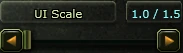
- UI Scale: In the Game1 tab, make sure the UI Scale value is set to 1.0.
This setting is required to ensure that image matching and visual detections work accurately.
💻 Windows Settings
- ClearType Text Setting: The ClearType feature in Windows should be enabled by default.
If you’ve customized font settings, you may also get stable results by disabling ClearType.
(Start > Type “ClearType” > “Adjust ClearType text” > Set to Default or Off)
5️⃣ In-Game Interface Positioning
The macro operates by detecting specific visual elements located at the top-left corner of the game window. Therefore, you must position the in-game interface elements as shown in the example image below.
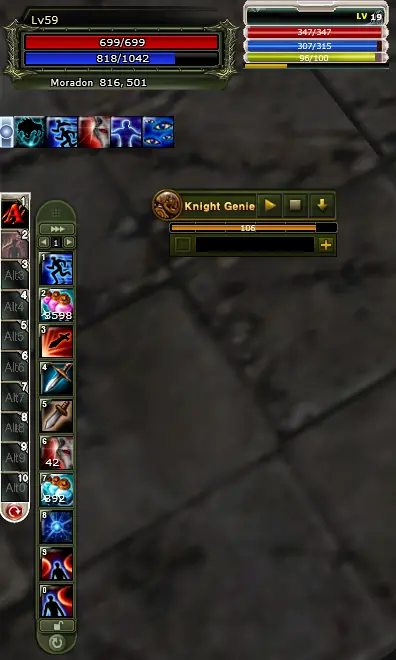
These adjustments are essential for the macro to function accurately.